
There is a moment, just before you click the button that says Upload, when a reasonable person hesitates. The file is a bank statement, or a passport scan, or a letter from a doctor. The website is one you found thirty seconds ago and will never visit again. It is free, it looks fine, and you have no idea where your file is about to go.
That hesitation is correct. It is not paranoia and it is not a failure to understand technology. It is the same instinct that stops you from handing your wallet to a stranger who offers to hold it. The good news is that you can usually answer the question — does this website take a copy of my file? — in less than a minute, without knowing anything about programming.
What "upload" actually means
Most free online tools work like a post office. You hand over your file, it travels across the internet to a computer owned by whoever runs the site, that computer does the work, and the result travels back to you. For a short time — sometimes seconds, sometimes much longer — your document sits on a machine you have never seen, in a building you cannot name, in a country you may not have chosen.
Some tools do not work that way. They send you the instructions instead of taking your file. The work happens inside the browser tab already open on your own computer or phone, and nothing about your document ever leaves the device. Every tool on Toolpia is built this way, including the PDF merger: your file is opened by your own browser, and there is no server for it to travel to.
Both kinds of website look identical. Same buttons, same progress bar, same result. So here is how to tell them apart.
Check 1: the airplane test
This is the easiest first check, and it is the one we recommend to everybody. It demonstrates that the tool can process the file locally; by itself, it does not prove what the page may do when the connection is available.
- Open the tool's page and wait for it to finish loading.
- Turn off your internet. On a phone, switch on airplane mode. On a computer, turn off Wi-Fi.
- Now use the tool. Choose your file, press the button, wait for the result.
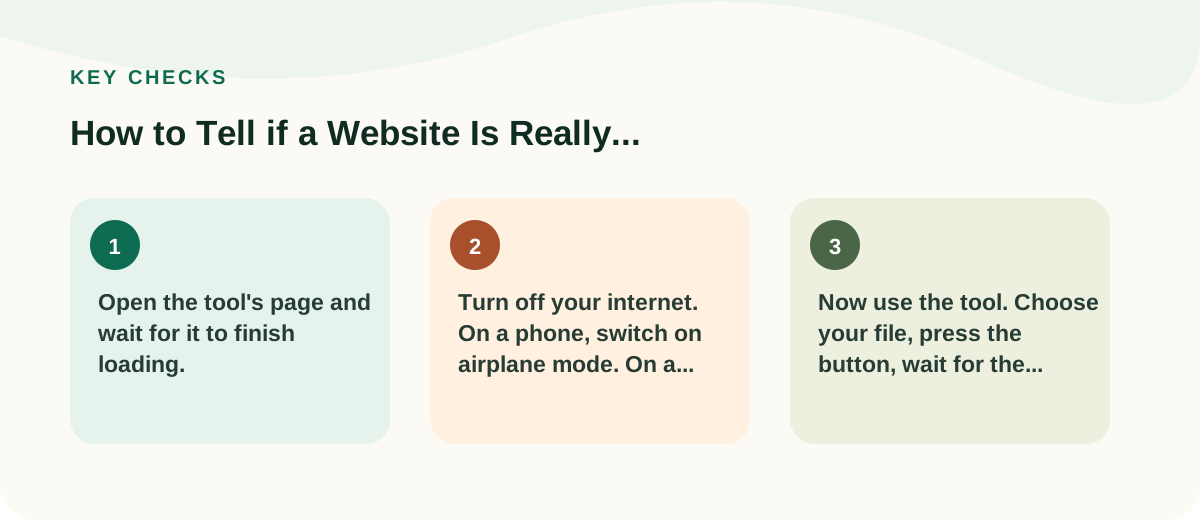
If it still works, the processing you just completed did not need to send the file to a server. If instead you get an error or a spinner that never stops, the tool needed a network connection for at least part of the job. That does not tell you exactly what was transmitted, but it is a reason to inspect the site's explanation and your browser's Network panel.
Turn your internet back on afterwards. Nothing is harmed by this test, and you can repeat it any time a site changes.
Check 2: read what they promise, not how warmly they say it
Look for a line about what happens to your files. Sites that use a server almost always have one, because they are legally obliged to. It usually reads something like files are automatically deleted from our servers after one hour.
Read that sentence again. A promise to delete your file later is a confession that they have your file now. It may well be an honest promise, kept by careful people. But it is a promise, and promises depend on the company still existing, still being careful, and not being broken into. A tool that never receives the file has nothing to promise about.
Be equally careful with warm words that say nothing. Secure, private, and encrypted are all compatible with holding a copy of your document. Encryption describes how the file travelled, not whether it arrived somewhere.
Check 3: watch how long it takes
This one is rough, but it is a useful second opinion. Sending a large file across the internet takes time, and that time depends on your connection.
Take something big — a scanned document of fifty pages or more — and use the tool on a slow or mobile connection. If the result appears almost instantly, the file did not make a round trip. If a small file is quick but a large one crawls, and it crawls more on mobile data than on home Wi-Fi, you are watching an upload.
When a server is a fair answer
We are not going to tell you that every site with a server is untrustworthy. Some jobs genuinely cannot be done on your own device: converting a video, translating a document, anything involving an account or a payment. If the work is real and the file has to travel, that is an honest trade.
The trade is only worth making knowingly. Ask two questions before you accept it. Does this task really need their computer, or would mine do? And would I mind if this particular file were sitting on a stranger's hard drive next year? For a holiday photo, probably not. For a payslip, probably yes.
One thing that does leave your device
We would rather be exact than flattering. On a browser-based tool your file stays with you, but the page is still a page on the internet, and pages carry advertising and analytics. Those partners see the ordinary things any website sees: roughly where you are, what browser you use, which page you looked at. They do not see your document, because your document never becomes part of the page request. That distinction is the whole point, and it is worth keeping straight in your head.
Common questions
Does closing the tab delete my file?
With a browser-based tool there is nothing to delete, because no copy was ever made anywhere else. The file on your own computer stays exactly where you left it. Closing the tab simply ends the work in progress.
Is my file safe if the website has a padlock in the address bar?
The padlock means the journey was protected from eavesdroppers. It says nothing about the destination. A file can travel perfectly securely to a server that then keeps it. The padlock is necessary, not sufficient.
I am not confident with computers. Which check should I do?
Start with the airplane test: load the page, switch on airplane mode, and use the tool. If it works, the processing can happen locally. If it fails, the page needs a connection for some part of the job. Neither result is a complete security audit, so avoid highly sensitive files unless you trust the provider or can confirm the request activity.