
Somebody asks you for the termination clause. You have the contract — all forty-two pages of it, as one PDF — and the clause is on page nineteen. The path of least resistance is to attach the whole file and write see clause 14.3. Almost everybody does this. It takes four seconds and it is the wrong habit.
What you have actually sent is the rent, the counterparty's bank details, a schedule of everyone's names, and whatever was pasted into the appendix by a colleague in 2019. None of it was needed, all of it is now in somebody's inbox, and that inbox will be forwarded, archived, and eventually searched by people you have never met.
Why the whole file is worse than it feels
The risk of any one over-sharing email is small. The problem is that it is a habit, and habits compound. Over a year, an ordinary office worker sends dozens of documents in full when a page or two would have done. The specific things that leak this way are dull and consistent:
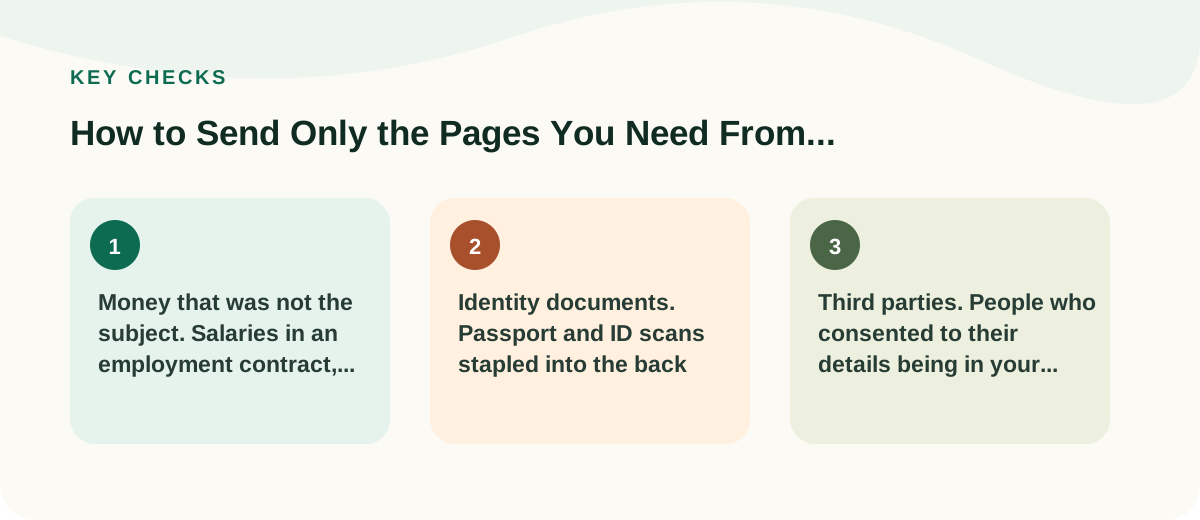
- Money that was not the subject. Salaries in an employment contract, rates in a supplier agreement, the number the other side accepted last time.
- Identity documents. Passport and ID scans stapled into the back of onboarding packs.
- Third parties. People who consented to their details being in your file, not in a chain of forwarded messages.
- Signatures. A high-resolution image of somebody's handwritten signature, copied out of a PDF in about a minute.
There is also a plainer reason. A recipient given forty-two pages will read none of them and reply asking which bit you meant.
Find the range before you touch anything
Open the PDF and note two numbers: the first page you need and the last. Two things trip people here.
First, printed page numbers are not PDF page numbers. A contract with a cover sheet and a contents page will show "1" on what the file calls page 3. Trust the page counter in the viewer, not the ink.
Second, clauses run over. If your clause starts at the foot of page 19 and finishes at the top of 20, send both. Sending half a sentence invites a second email.
Take the pages out
Extracting a range is what our Split PDF tool does: you give it the file, tell it 19 to 20, and it produces a new PDF containing only those pages. Your original is untouched, and the contract is never uploaded anywhere — it is opened by your own browser, which is the behaviour you want from anything you point at a confidential document.
Keep the original. The extract is for sending; the full file remains your record. If there is any chance of an argument later about what was agreed, you want to be able to produce the complete document.
The redaction trap
Sooner or later you will need to send a page that is mostly fine but has one line on it that should not travel. Two methods that look like they work do not:
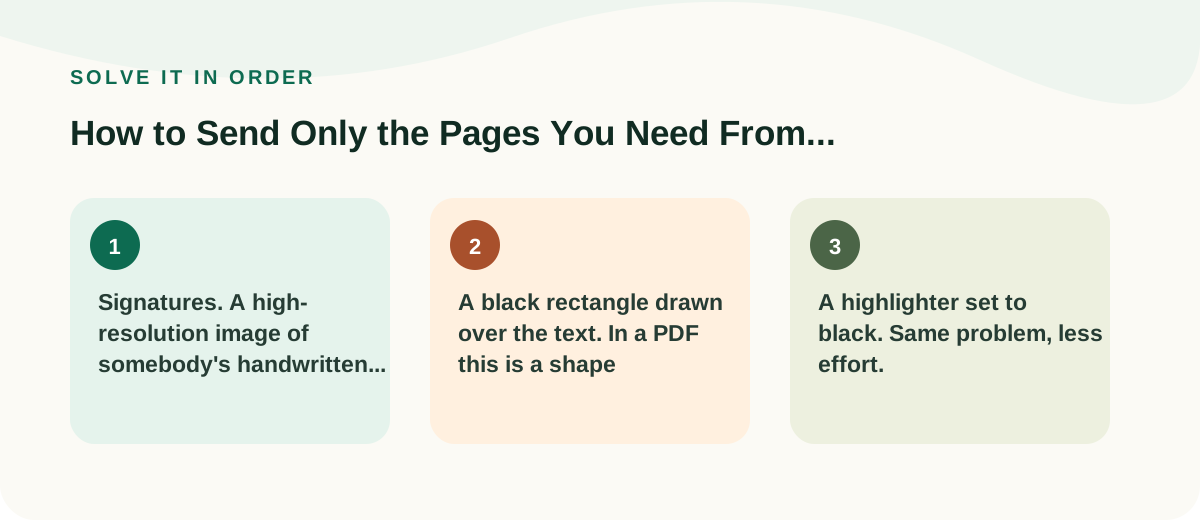
- A black rectangle drawn over the text. In a PDF this is a shape sitting on top. The text is still underneath it and can be selected, copied, or read by any search tool. This has ended careers.
- A highlighter set to black. Same problem, less effort.
Real redaction removes the text from the file, and only a few programs do it properly. If you do not have one, the honest workaround is old-fashioned: print the page, cover the line with a marker or a strip of paper, and scan it again. What you scan is genuinely all that exists. Better still, ask whether that page needs to go at all — removing a page is reliable in a way that hiding words on it is not.
Before you press send
- Open the new file and read it. Not skim — open every page of it. This catches the wrong range immediately.
- Give it a name that says what it is:
Lease_clause14-3_pp19-20.pdfrather thandocument(3).pdf. - Say in the email what you sent and what you kept: "Attached is the termination clause, pages 19 to 20 of the lease. Happy to send the full document if you need it." This is one sentence and it prevents the recipient assuming you are hiding something.
If you find yourself sending the same extract to several people, save it properly in your shared drive with a clear name. The second person who needs clause 14.3 should not have to ask you.
Common questions
Does splitting a PDF reduce the quality of the pages?
No. The pages are copied across as they are, not re-rendered. A scanned page comes out looking exactly as it did, at the same file size per page.
Can the recipient tell that pages are missing?
Often yes, from clause numbering or printed page numbers, and that is fine — it is why you say so in the email. What they cannot do is recover the pages you did not send, because those pages are not in the file.
What if I need pages 3, 8 and 19 rather than a range?
Extract each piece, then join the results into one file with our PDF merger. Put them in the order they appear in the original, and mention the page numbers in your message so nobody has to reconstruct where they came from.