The file is below the stated size limit, but the upload still says “invalid image,” “photo not accepted,” or simply starts over. That usually means the file passed only one rule. Photo portals commonly check several things independently: format, pixel dimensions, aspect ratio, file-size range, colour, image quality, and the actual composition of the photograph.
“Under the limit” is not the same as “valid”
File size is measured in KB or MB. Image dimensions are measured in pixels. Aspect ratio describes the shape of the frame. These values affect one another, but they are not interchangeable.
A 500×500 JPG and a 1200×800 JPG can both be 180 KB. The first is square; the second is landscape. If a form requires a square image between 600×600 and 1200×1200 pixels, neither file is valid even though both are comfortably under a 240 KB limit.
Official requirements can be completely different
Do not reuse a photo setting just because it worked for another country or application. Current official examples show why:
| Application example | Format and dimensions | File-size rule |
|---|---|---|
| U.S. visa digital image | JPEG, square, 600×600 to 1200×1200px, colour in sRGB | 240KB or less |
| India e-Visa applicant photo | JPEG, height and width equal | 10KB to 1MB |
| Canada online passport renewal | JPEG/JPG, portrait 3:2, 1200×1800 to 3000×4500px | 200KB to 5MB |
These are examples, not universal presets. The U.S. State Department also publishes different rules for an online passport renewal photo: it currently accepts JPG, PNG, HEIC, or HEIF between 54 KB and 10 MB. Always follow the page for the application you are completing, not a similarly named guide.
Eight reasons a small photo is rejected
1. The file has the wrong format
Changing a filename from photo.png to photo.jpg does not convert the image. It only changes the label. Open the original and export or convert it to the required format. If the portal says JPEG, submit a genuine JPG/JPEG file.
2. The dimensions are too small or too large
Aggressive compression can make the file small while leaving the pixel dimensions untouched. The reverse is also possible: repeatedly sending a photo through messaging apps may reduce the dimensions below the portal's minimum. Check width and height in the file properties or an image viewer.
3. The aspect ratio is wrong
Square means width and height must be equal. Portrait 3:2 means the height is 1.5 times the width, such as 1800×1200px. Do not stretch the face to change the ratio. Crop the frame while preserving the person's proportions, and leave enough room for the required head position.
4. The file is below a minimum
Some portals specify a range, not just a maximum. India’s official e‑Visa page currently requires the applicant photograph to be at least 10 KB. Canada’s online passport specifications set a 200 KB minimum. A heavily compressed 8 KB or 120 KB image can therefore be rejected for being too small.
5. The colour profile or image mode is unsupported
Some camera and editing workflows save CMYK, grayscale, HDR, or a wide-gamut colour profile. A basic upload validator may expect a conventional colour JPEG. The U.S. digital visa specification explicitly calls for a 24-bit colour image in sRGB. Exporting a fresh sRGB JPG can solve a technical rejection, but do not apply filters or change your appearance.
6. The photo is technically valid but visually unacceptable
A portal may accept the file and reject the photograph. Common causes include blur, visible pixels, shadows, glare, an uneven background, an incorrect facial expression, a face that is too large or too small in the frame, or another object in view. Passing an automated crop tool never guarantees final approval; the issuing authority makes that decision.
7. The application forbids editing
Resizing and cropping are not always permitted. Canada’s current online passport renewal rules say the photo must be taken by a commercial photographer, saved directly from the original camera file, and not altered with editing software, filters, or AI tools. In that case, ask the photographer for a compliant digital file instead of trying to repair it yourself.
8. The filename or browser is the problem
Older portals sometimes fail on emoji, multiple periods, accented characters, or very long filenames. Save a copy with a short name such as passport-photo.jpg. If the file satisfies every published rule, retry in a supported, updated browser with extensions temporarily disabled. Do not keep recompressing a valid image to solve a browser-session error.
A safe troubleshooting order
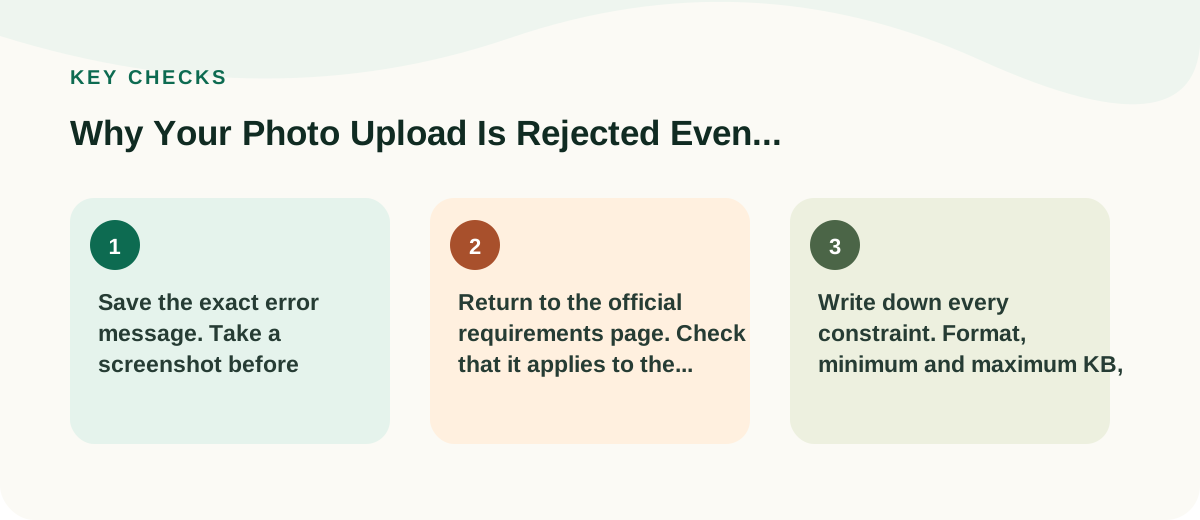
- Save the exact error message. Take a screenshot before changing anything.
- Return to the official requirements page. Check that it applies to the correct country, document, and application route.
- Write down every constraint. Format, minimum and maximum KB, pixel range, aspect ratio, colour, age of photo, and editing restrictions.
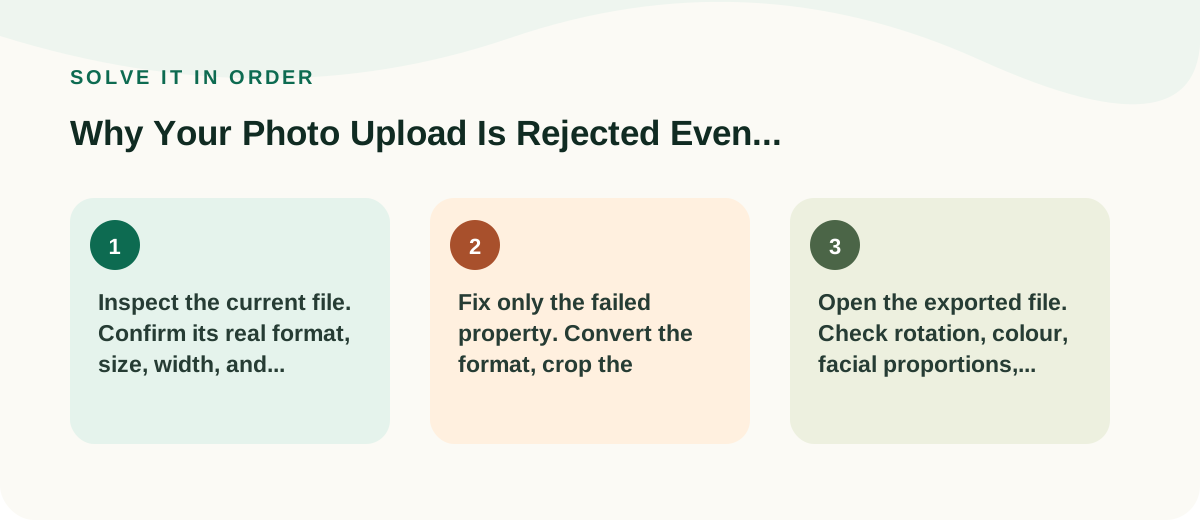
- Inspect the current file. Confirm its real format, size, width, and height.
- Fix only the failed property. Convert the format, crop the ratio, resize the pixels, or reduce the file size as required.
- Open the exported file. Check rotation, colour, facial proportions, sharpness, and background.
- Use a simple filename. Keep one period before the extension.
- Upload once in a fresh session. Repeated failed attempts can leave an old preview or incomplete upload in the form.
When Toolpia can help—and when it should not
Toolpia's Passport & ID Photo Maker can crop an existing photo to a listed size and prepare a downloadable file in your browser. The selected photo is processed locally rather than uploaded to Toolpia. This can help when an authority permits you to prepare your own digital image.
It does not certify acceptance, verify identity, or override the issuing authority's rules. Do not use editing tools where the official application requires an unaltered photographer-supplied original. Do not digitally replace a background, retouch facial features, remove shadows from the face, or apply AI enhancement when alterations are prohibited.
Frequently asked questions
Why does the form say JPG when my file ends in .jpg?
The extension can be wrong or the file may be damaged. Open it in an image viewer and export a new JPG from the original. Renaming PNG or HEIC to JPG is not conversion.
Can I make a rejected photo larger by adding data?
A file-size minimum usually exists to discourage images with inadequate detail. Adding meaningless bytes does not restore resolution or quality. Return to the original image and export it at the required dimensions and reasonable quality.
Should I remove photo metadata?
Only if the application instructs you to do so. Metadata is rarely the first cause of a size or dimension rejection, and rewriting the file unnecessarily can introduce another problem. Follow the official requirements rather than generic privacy advice.
What if every specification is correct?
Try a short filename, a current supported browser, and a fresh login session. If it still fails, contact the application operator and include the exact error message—but do not email your passport photo or identity document unless they provide an authorised channel.